
Build a mobile product catalogue for a small shop
Design a catalogue that helps shoppers choose a size, compare what they see and keep the right item in their bag. Work through a ceramic studio example.

Write the product choice in words a customer could read back to you. Then check that the same size, quantity and price reach the bag together.
Someone walks into a ceramics studio looking for a vase that fits under a low shelf. On a shelf in the shop they can hold both sizes. In a mobile catalogue they have a photograph, two lines of text and a size selector. The job of the product screen is to let that person choose with enough confidence to continue.
Start with Atelier, the Appsanic shop template. It includes a sample vase in two sizes, a quantity selector, a bag and an order draft. The sample uses demonstration prices and takes no payment. That makes it a useful place to check whether customers can choose the right item before you introduce any real ordering commitments.
Photograph the difference the customer is buying
Pick two variants with a visible difference. For this exercise use a tall and a short vase in the same glaze. Photograph them on the same table in the same light. Set a folded linen napkin beside them for scale. Capture one image of the whole silhouette and one of the rim or surface, then write down the actual height and opening diameter of each piece. A shopper trying to fit a shelf needs those measurements even when the photography is excellent.
Ask Sanic AI for a bounded screen change: “Keep Atelier’s bag and order draft. On the product page, put the selected vase’s height and opening diameter next to its size choice. Give Small and Large readable labels.” Supply the measurements yourself. An invented measurement becomes a customer service problem as soon as the page looks official. Add your own photographs using the Appsanic asset guide and check the crop at phone width.
In the supplied Atelier sample, the Sora vessel changes from 16 cm at $48 for Small to 23 cm at $68 for Large. The photo below shows the Large option with the height beside the pot, the selected glaze under the selector and a quantity of two. A customer with a 20 cm shelf can already rule this one out. That is a better question for your photo review than “Does this picture look expensive?”
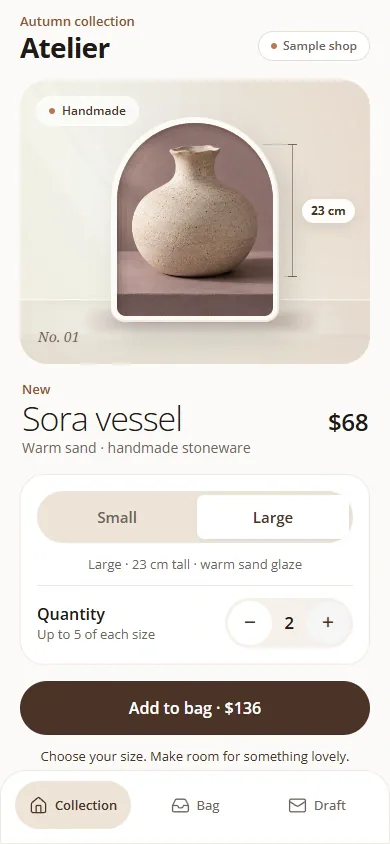
Repeat that exercise with a photograph and measurements from your own shop. Give a colleague the shelf height and cover the option names with a finger. Can they still identify which variant fits from the measurement? Then switch variants and read back the height and price together. If the image changes first and the numbers lag behind, a shopper can make the wrong decision even though each photo and price is correct in isolation.
Follow one selection through the bag
A product and its variant answer different questions. “Ridge vase” names the design. “Small, chalk glaze” names a particular item. If your bag groups by product title alone, adding a second size can overwrite the first or merge the quantities. Test the distinction with two visibly different choices before adding more products.
For a worked example, set the small vase to a sample price of 35 and the large vase to 50 in the same currency. Add two small vases and one large. The item subtotal should be 120. Remove one small vase and expect 85. Keep gift wrap separate while doing this arithmetic, then enable it and confirm the difference equals the amount shown. Display the unit and currency consistently on the product, bag and draft. If your prototype offers a draft only, label its final action Save order draft and show the customer what was saved.
Check an actual order draft against the shelf
Here is the result with the template’s own sample prices. Start with an empty bag, choose two Large vessels and add them. The bag shows Small 0 and Large 2. Choose gift wrapping once. Two items at $68 plus $6 for wrapping gives $142. Follow the action to Draft, supply a descriptive name, review the selection and save.
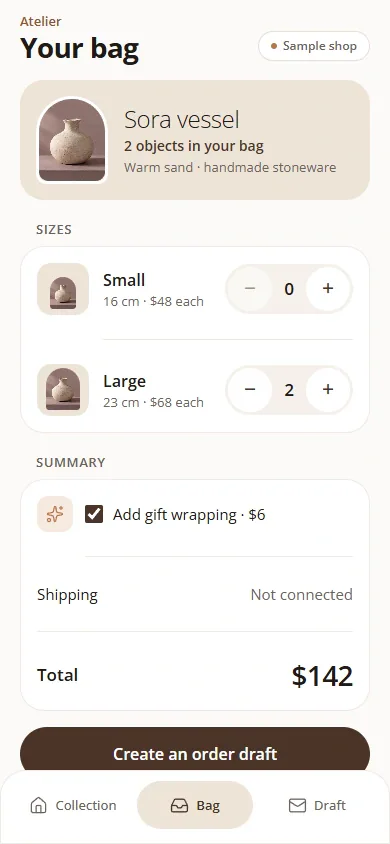
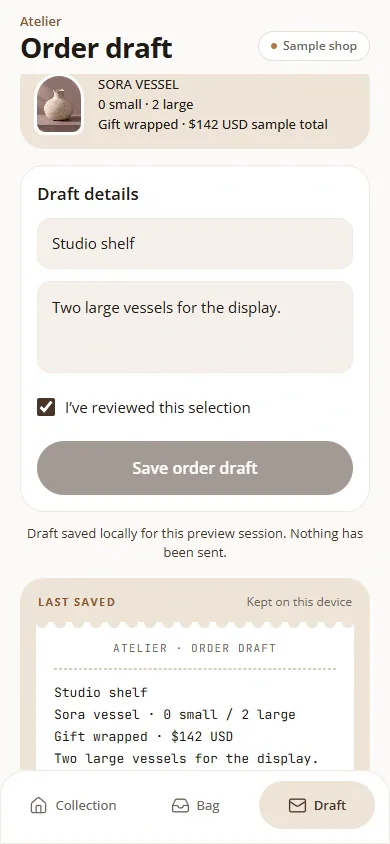
Read the saved summary aloud as if you were preparing the parcel. It should describe two large vessels, gift wrapping and $142 USD. The draft in this example stays in the preview session and nothing has been sent to a shop. Change the bag after saving and compare the current selection with the Last saved summary. If you add real ordering later, decide which of those two versions a staff member would receive. Record that decision alongside the final button wording before you connect inventory or payments.
Decide who owns the catalogue
Sample inventory works while testing a handful of items. If the shop already updates products in Shopify, decide which data must always come from the storefront. A practical split is for the storefront to own names, variants and prices while your app owns its page layout and explanatory copy. Entering the same price manually in two places creates a second maintenance job.
The Appsanic Shopify guide documents public product and collection reads. Check exactly what each operation returns before designing a stock badge or a checkout button. Test an empty collection and a detail request for a product that has been taken down. An honest unavailable message and a route back to the catalogue are more useful than leaving yesterday’s photograph above an active purchase action.
Give a shopper a task you can check
- Ask someone to find a vase for a specified shelf height. Let them choose without coaching.
- Ask them to add a second size as a gift and explain the two bag lines to you.
- Have them back out of the draft, change one quantity and reopen it. Compare the draft against their last selection.
- Replace one product photo with a deliberately awkward tall crop in your test copy. Check that the size, price and main action stay visible.
If a shopper keeps returning to the picture to compare sizes, bring the dimensions closer to the selector. If they can recite the choice accurately but the draft is wrong, fix the variant data first. These observations come from the same short test, but they call for very different changes.
Find the glaze missing from the product card
Set up one test vase in six distinct glazes. Publish the variants to the test storefront and confirm that the sixth can be selected there. Appsanic’s Shopify catalogue list returns up to five variants per product. A colour selector built entirely from that list can hide a real choice. Let the catalogue card open the product by its handle and populate the selector from the detail response, which includes up to twenty variants.
Open the vase from the catalogue, choose the sixth glaze and put one in the bag. Its line should show the glaze you chose and that variant’s price. Return to the product and add the first glaze. Expect two distinct lines. If both say “Ridge vase” with the same picture, check the stored variant identifiers before changing the images. A correct selection can still look wrong when the bag always reads the product’s default title or photo.
For products with more than twenty variants, inspect the detail response’s variant pageInfo.hasNextPage before describing the selector as complete. A link to the shop’s full listing gives shoppers a way to see the remaining options. The connector testing guide walks through testing catalogue pagination separately.
Published