
How it works
From an idea to an app you can try.
Describe what you want, shape every screen, connect the services you already use, and run the result as you go. It is one project in one place.

The journey
Five stations. One project.
Move between them in any order. Everything you do lands in the same app.
Describe
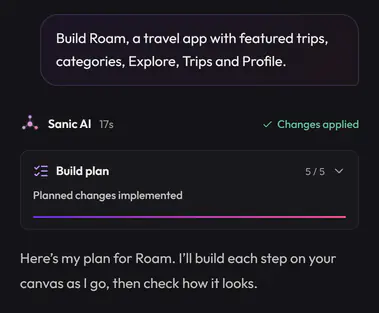
Tell Sanic AI what you want to make.
Write a few sentences about your app. Sanic AI plans the screens, builds them on the canvas and checks its own work before it hands back.
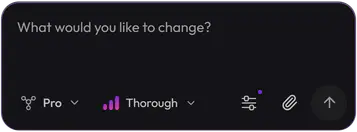
- Pick a model for the job: Lite, Core or Pro.
- A build plan shows each step as it completes.
- Select any part of a screen and describe the change you want.
Design
Shape every screen by hand.
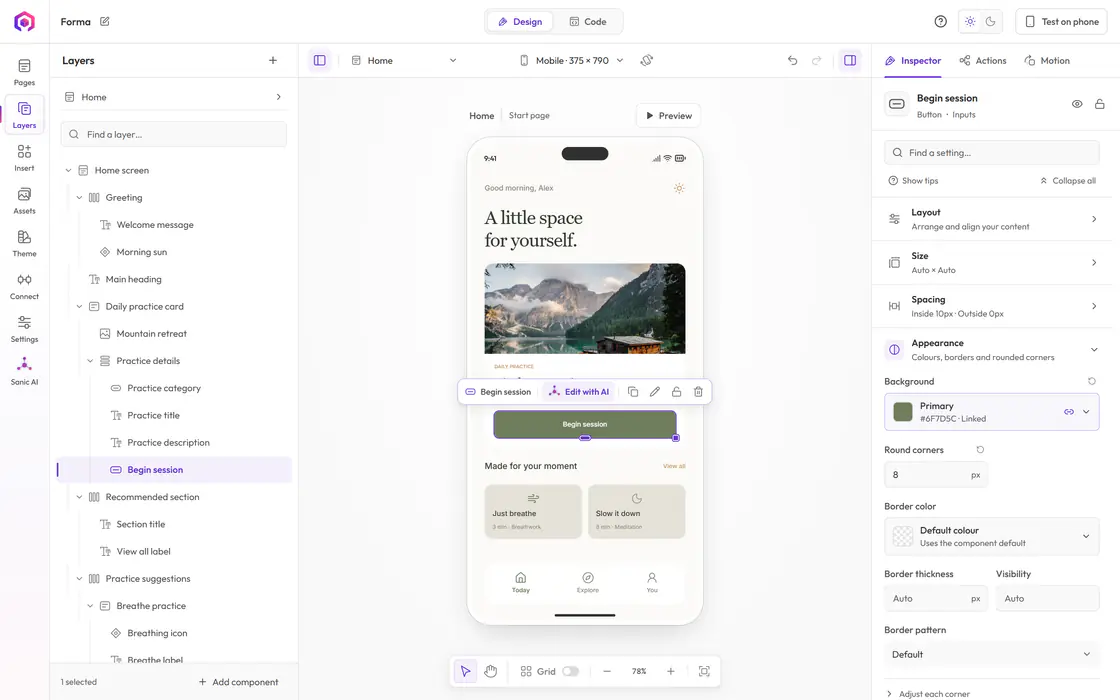
Drag in built-in components, arrange layers and set every property in the Inspector. Colours link to your theme, so one change restyles the whole app.
- Double-click any text to edit it in place.
- Phone and tablet sizes on the same canvas.
- Turn a repeated design into a custom component.
Connect
Bring in the services you already use.
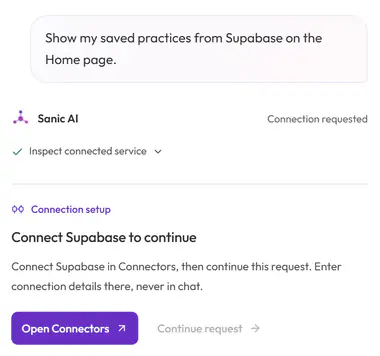
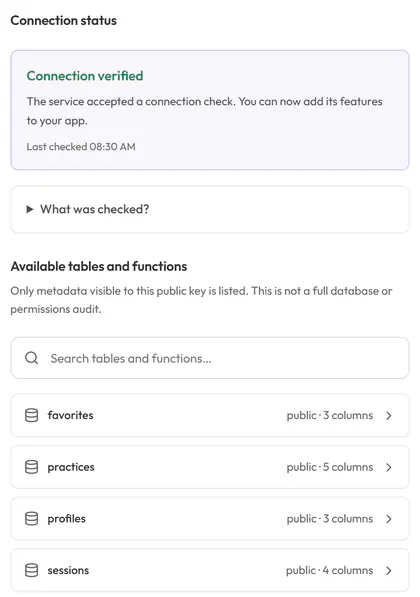
Add a service's public details once and check the connection. Your code and Sanic AI then build with it, and the app talks to the service directly.
- Supabase for sign-in, a database and files.
- Keep a Test and a Live configuration apart.
- Keys never go in chat: Sanic AI asks you to connect.
Test
Run your app while you build it.
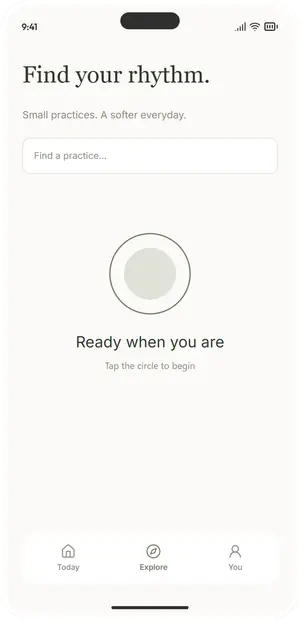
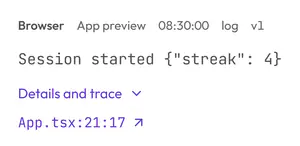
The browser preview runs your real app beside the canvas. Tap through it, read the console, and follow any error straight to its line of code.
- Console entries name the file and line that logged them.
- Ask Sanic AI about any preview error.
- Phone testing through Expo Go: coming soon on the hosted site.
Release
Work through what the stores ask for.
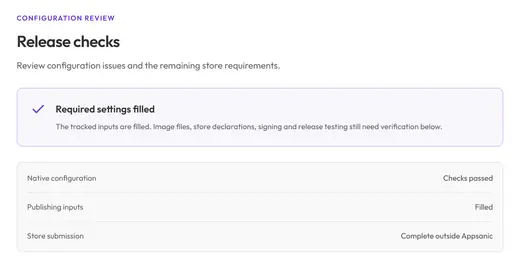
App settings collect identifiers, icons, permissions and store listings, and the release checks tell you what is still missing. Submission happens in the store consoles.
- Release checks for the App Store and Google Play.
- Every required setting in one searchable dialog.
- Signed builds from Appsanic: coming soon.


Underneath
Every change goes through one checked door.
Appsanic keeps a single description of your app. The canvas, Sanic AI and your own code all change it the same way.
Because there is one description, nothing drifts. A colour you link in the Inspector is the same colour Sanic AI writes code against, and the app you preview is the app you package.
A change that breaks the rules is refused as a whole, so your project is never half-updated. Two edits that overlap are kept apart for you to review, never silently merged.
How your project is protected- Visual editor
- Sanic AI
- Your code
- Checked against the rules
- Rejected whole if any part fails
- Undoable
- Browser preview
- Phone through Expo Go
- Native app
Honest about today
What works now, and what is next.
The editor, the code workspace, themes, connectors and the browser preview are ready. A few steps still carry a badge.
Phone testing on the hosted site, Coming soon
Signed builds and store submission from Appsanic, Coming soon
GitHub sync and project export, Coming soon
Start with one screen. Keep going from there.
A free account opens the editor, the code workspace and five starter templates.