
How to handle lost connections and retries in a mobile app
A field-ticket walkthrough for deciding what stays on screen, when to offer a retry, and how to test a lost response without creating a second ticket.
Decide what the app can prove before you choose its status message. A missing response and a rejected request need different recovery paths.
A technician reaches a basement with one bar of reception. She types “pump vibrating after restart”, adds the equipment number and taps Send. The spinner disappears. Did the office receive the ticket? If the only option is to type it again, she faces a bad choice. Leave a fault unreported or create two jobs for the same repair. Designing for this moment starts with the promise made by the word “sent”.
Write down what you can prove
Sketch a ticket form on paper. Beside it write four statements: “The text is on this screen”, “This phone has saved a copy”, “A request left the phone” and “The office accepted ticket 418”. Each statement needs evidence. Seeing the words while the app is open only proves the first one. A successful response with a ticket identifier can prove the last one. Ask the person building the data connection what happens between those points. If the answer is unknown, make that uncertainty visible in the design.
Use one small ticket with two fields for this exercise. Have the form display the technician’s description and the equipment number throughout recovery. A retry screen that loses the equipment number still forces the technician to walk back across the basement. Keeping the context in sight is often more important than animating the spinner.
Give each outcome its own screen behavior
Start with the happy path in Appsanic. Ask Sanic AI to lay out the ticket form, a sending state and a receipt. Put the equipment number in the receipt header. Use the visual editor to move the retry control within thumb reach. These layouts let you review the interaction before wiring it to a service. The Appsanic connector guide explains how a project gets the connection it uses. Saving a connector by itself does not implement offline storage or safe retries.
For a validation error, explain which value the server rejected and leave the form editable. “Enter the equipment number printed on the housing” tells a technician how to proceed. For a confirmed success, show the ticket identifier and a way to get back to the ticket list. For a lost response, use words that describe the evidence you have: “We couldn’t confirm this ticket. Check its status before sending again.” Only show a Check status control if the service can look up this submission.
Read the three screens below from the technician’s point of view. They are running screens from a small Field book example authored in Appsanic. The ticket service is simulated so you can rehearse the wording without submitting a real repair. The first screen identifies pump 12. The second keeps its description visible after a lost reply. The third introduces ticket 418. That new piece of evidence is what lets the interface change the wording to “Received by the desk”.
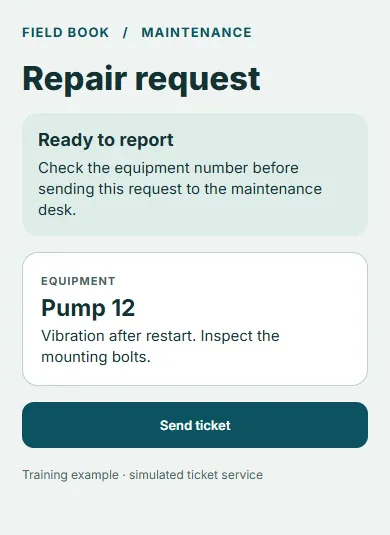
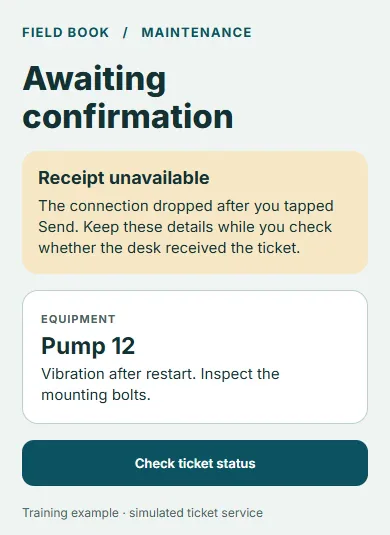
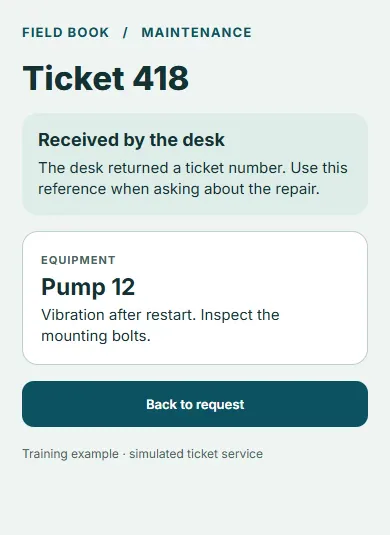
Cover the third screen while someone reads the second. Ask what they would tell the dispatcher right now. If their answer is “ticket 418 has been filed”, find which words implied that. If they say “I have to type it all again”, make the preserved equipment number and description easier to find. Neither rehearsal needs a live service. Verifying that Check ticket status returns the correct record does.
Prevent a double send at both ends
Disable a second tap while the first request is in flight. That covers a quick double tap. It does little for the case where the server accepts the ticket and the confirmation gets lost. For a service you control, give a submission a unique identifier when the user first sends it. Preserve that identifier across retries of the same submission. Have the receiving service record it with the ticket and return the existing receipt if it sees the identifier again. A newly requested repair gets a new identifier, even if it has the same equipment number.
If your service offers neither a lookup nor duplicate protection, design around the limitation. Keep the entered details available, provide the service desk’s existing contact route and let someone verify the ticket before resubmitting. Avoid promising “saved on this phone” until you have tested a real local-storage implementation through closing and reopening the app.
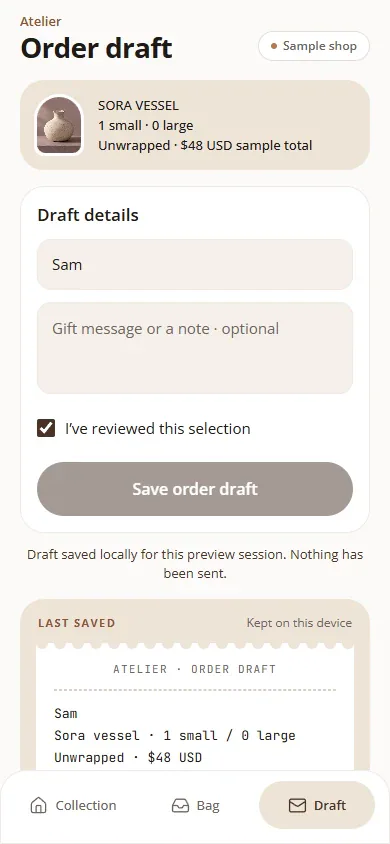
A different Appsanic example puts a useful boundary into its confirmation text. In the Atelier sample shop, saving the reviewed vessel selection produces a local preview-session draft. The screen explicitly says that nothing has been sent. Write the equivalent sentence for your ticket at each stage. Then have the person who owns the receiving system identify which response or stored record justifies each verb. This catches a UI that promises delivery as soon as the user presses a button.
Rehearse three failures with a disposable ticket
Prepare the app while connected and open it on a phone. Appsanic’s phone preview guide explains how the preview itself connects. Interrupt the app’s ticket service separately if you can; losing the entire preview host makes it harder to identify which part failed.
- Disconnect before tapping Send. Check that the description survives and the screen gives the technician a sensible next action.
- In a test service, accept the ticket, then delay or discard the reply. Retry and count the records in the office system. There should be one record for that submission.
- Reconnect after leaving the form. Check what is still available, what has expired and how the technician reaches the receipt.
Record the exact message the technician saw beside the office record count. A screenshot of a tidy error screen cannot tell you whether two repair jobs were created. Those two observations together give you a release decision you can defend.
Keep a correction separate from a retry
Consider a harder version of the basement ticket. The technician submits a fault for pump 12. The office receives it, but the acknowledgement never reaches the phone. She then notices that the equipment plate actually says pump 21. Reusing the pending submission identifier for the changed description creates an ambiguity. Returning the original receipt could make her believe the correction was accepted. Creating a second repair could send two people to the same job.
Write the intended behavior on paper before changing the interface. While the original request is unresolved, preserve its submitted contents and identify it as awaiting confirmation. Allow the technician to write the correction separately. Once the service returns the original ticket number, offer whatever amendment path the office system actually supports. If amendments go through a dispatcher, show the ticket reference and that contact route.
Test with two easily distinguished equipment numbers in a disposable environment. Look up the office record by submission identifier and compare its equipment number with the receipt on the phone. A passing result leaves one original ticket and a traceable correction, or explicitly explains why the correction still needs attention. The guide to choosing and testing a connector helps check which lookup or amendment operations your service provides.
Published