
How to keep each user’s mobile app data private with Supabase
Connect a personal reading list to Supabase, define who can read and write each record, and verify account separation with two test readers and a signed-out session.

The database must enforce ownership on every permitted operation. Test with two ordinary users in a separate project and check the screen after sign-out, account switching and reload.
Two people can save the same book without sharing a reading list. That distinction is easy to miss when a prototype contains one person, one phone and three rows of sample data. The app should load both readers’ copies independently. Removing a book from one list should leave the other reader’s copy intact. This is a good first private-data feature because you can write down the expected result of every action before touching the editor.
Design the record around ownership
A list entry needs its own stable identifier, a reader identifier, the book title and the date it was added. If you also allow progress notes, those notes belong to the reader’s entry. Two records can legitimately share the same book title. Use the entry identifier to select the record you intend to change. Updating every row named “The Secret Garden” would be wrong even for one user who imported two editions.
Decide which operations each role needs. A signed-out visitor can read a public introduction to the app. A signed-in reader can create a list entry for themselves, see their own entries, change their own notes and remove their own entries. An account should never gain access to a record because a screen happened to supply another reader’s identifier. The database must evaluate ownership against the authenticated session.
Set up a test project with two ordinary readers
Add a Supabase connector in Appsanic using the Project URL and Publishable key from a test project. Save it under Test details, run Check connection, and confirm the tables listed are the ones you expect. The connector checks schema metadata. A successful check does not read your customers’ rows or certify what permissions each user has. The Appsanic Supabase guide covers the connector fields and how the app obtains its client.
Configure row-level security in your own Supabase project before putting private data in the table. Grant the appropriate operations only to the roles that need them. Give each allowed operation an ownership policy. For an update, consider both the existing row and the values it may have after the change. A reader should not be able to transfer an entry to another account by editing its owner field. Keep service-role or other privileged credentials entirely out of mobile code and out of the connector. Supabase explains the distinction between row visibility and permitted new values in its row-level security guide.
Start with the two blank fields in Appsanic’s Test details. Open your practice project in Supabase, read its project address and copy the matching Publishable key from that same project. A secret key or service-role key belongs on a trusted server. The address in the first field determines which database will receive the requests. Labelling a connection “Test” cannot turn an address for your live database into a practice copy. Before entering sample books, compare the project shown in Supabase with the address saved in Appsanic.
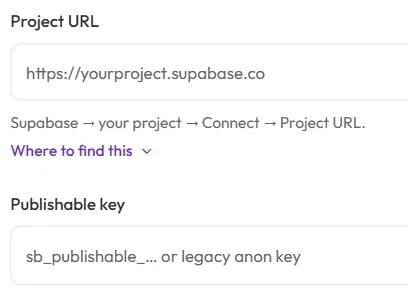
For your test notes, keep the human-readable project name, the two fictional reader names and the date of the run. Keep passwords and keys out of the notes. When a test fails, those few details help distinguish an account mix-up from a screen that kept yesterday’s data. Use a new, recognisable line of sample text for each run so an old local copy cannot pass as a fresh read.
Make the app respect a changing session
Have the screen wait until it knows whether a reader is signed in. Once the session is ready, load the entries needed for that screen, in an explicit order, with a limit appropriate for a phone. A friendly “Save your first book” belongs after a successful empty read. If the connection fails, keep the difference between “no books” and “we could not load your books” visible.
Clear previous private results when a user signs out or switches accounts, including results that arrive late from an earlier request. A fast local network can conceal this bug. Delay a test read, sign out while it is pending, and confirm the old reader’s titles do not reappear when the request finishes. In Appsanic’s browser preview an in-memory Supabase session resets when the preview reloads. Include a deliberate sign-in step when you repeat a browser test.
Follow the note as well as the book
These two screens are from Appsanic’s Folio template. The shelf shows the book you are reading. Highlights has separate fields for a passage and a personal note. Folio’s screen says that the passage and note stay in the preview session. Use this as a starting layout for a connected reading list. Account ownership is a separate behaviour you add and test in your own project.
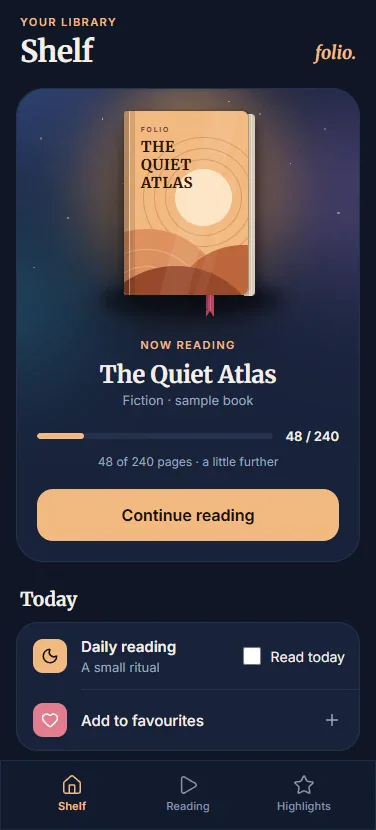
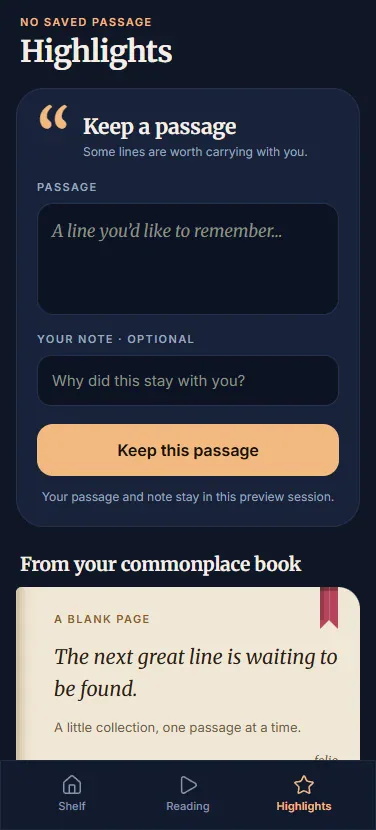
Give both test readers the same book and passage. Give just Rowan’s copy the note “Check the map on page twelve.” When switching to Kit, the title and passage can look entirely reasonable even if the app loaded the wrong entry. The private note gives the test a decisive answer. Look at the edit field, saved highlights and any recently viewed card that echoes the note. Check them again after going back a screen. A blank field on first arrival covers only one of those places.
Run an ownership rehearsal
- Create two test accounts you control, one for Rowan and one for Kit. As Rowan, add “The Secret Garden” with a note only Rowan should see. As Kit, add another copy with a visibly different note.
- Using a separate browser session for each test account, reopen both lists. Confirm each person sees the correct note. Repeat with a newly created empty account to check the first-use screen.
- As Rowan, edit and then remove Rowan’s copy through the regular interface. Reopen Kit’s list. Record which entry remained and whether the notes still match their owners.
- In your test project’s policy tests, include a signed-out role and a signed-in non-owner for each permission. Have the tests confirm that both are denied access to private rows. Save the results alongside your feature tests before adopting the policy in Live.
A private list is ready when you can explain its owner, the authority that enforces the owner rule and the state shown to the person after a session change. Keeping those responsibilities clear also makes the next private feature easier to review.
Check the draft that never reached the database
Use one test phone for two readers. As Rowan, open a saved book and type “Ask Mara about chapter four” into its notes field. Leave the edit unsaved. Sign out, sign in as Kit and open Kit’s copy of the same title. The input should start with Kit’s own saved note, or be empty if Kit has never written one. Press Back and reopen the editor. The phrase about Mara should never appear for Kit, even for a moment.
If it does, compare Kit’s stored entry with the text on the phone. A correct row paired with the wrong input points to a draft the application retained locally. Give each draft a key that includes the signed-in reader and its entry identifier. Clear the old reader’s open editor when the session changes. Decide separately whether you promise to recover a draft for its original author.
Repeat after closing the app during Rowan’s edit. In the physical-device testing guide, use the same phone for both sign-ins. Testing on two different devices would skip the shared local state this exercise is meant to reveal.
Published