
Build a study planner that survives a change of plans
Turn Orbit into a study planner that keeps deadlines, study sessions and completed work straight when a student has to move an afternoon of revision.
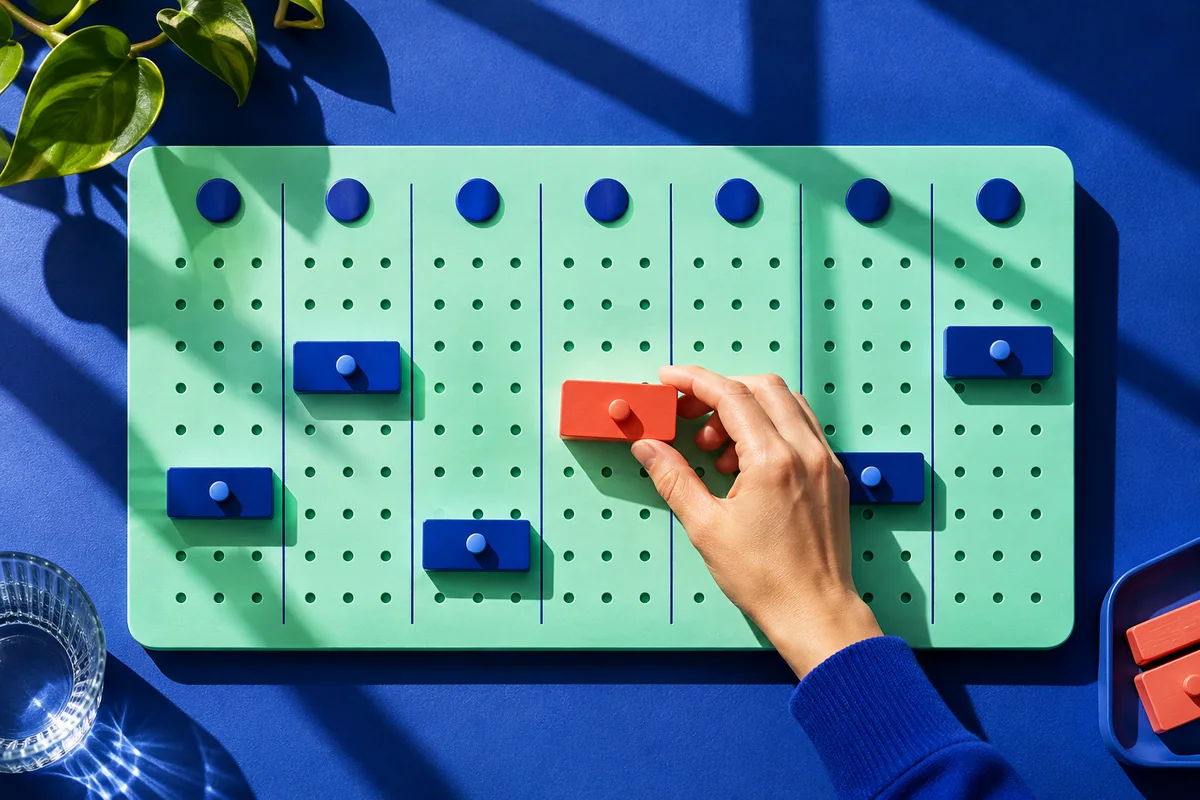
Keep when the assignment is due separate from when the student plans to work. Moving Tuesday’s study session should never silently change Friday’s deadline.
On Monday, Mina plans to outline her history essay on Tuesday afternoon. On Tuesday she gets called in to work. The essay is still due Friday. A calendar can make the change look easy: drag one rectangle to Wednesday. The real test is what happens to the deadline, the partially written outline and the reminder she expects when she opens her planner again.
The Orbit template starts with three priorities, a focus-session recorder and a notes screen. Its sample priorities give the design a rhythm. Rescheduling is the behaviour you are adding. Start with a single assignment and follow it across two days before filling a whole week.
Give each date a job
Write one example in plain language before asking Sanic AI to change the project. “History essay” is an assignment. Friday is its deadline. “Gather three sources” and “Draft the opening” are two sessions belonging to it. Each session has a planned day and its own completion state. If Mina moves the second session, the first should still appear as completed and Friday should still be the deadline.
Write those distinctions into your prompt. Try: “Adapt Orbit’s Today screen for a student. Show one assignment due Friday, with two separate study sessions. Let me move an unfinished session to another day while preserving its assignment and completion state. Keep the existing Focus screen.” Check the two kinds of dates in the working preview. A new label on a card alone cannot demonstrate the behaviour.
Here is Orbit’s starting point after checking off one task. Today shows one of three priorities complete while the card still labels the whole plan as a 35-minute block. Completing a priority and changing the plan’s duration answer different questions. Keep those meanings intact when you replace the sample labels with Mina’s study sessions.
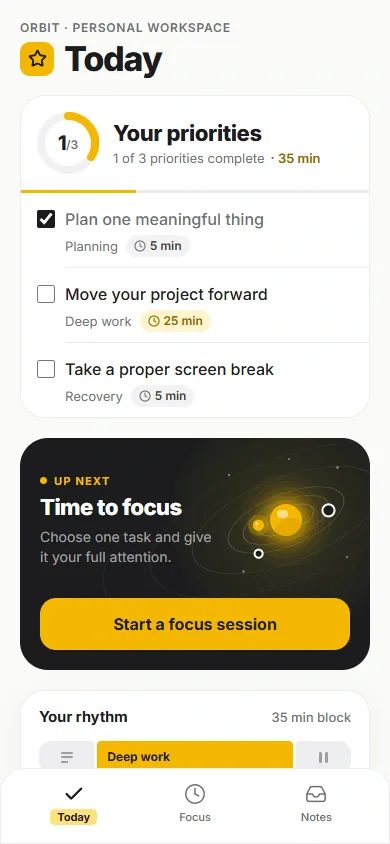
Make a small test schedule on paper. Put a tick beside the five-minute task Mina has done and a pencil mark beside the 25-minute session she wants to move. Ask her to describe Wednesday before showing her the new screen. If she expects the completed task to appear on both days as context, give it an unmistakable completed state there. Leave it out of Wednesday’s remaining-work total. This catches a common arithmetic mistake before you add reminders or build a weekly calendar.
Make the move visible where it happened
Open a session from the day list. Give its detail view a single action labelled Move session. Show its current day, let the student choose another, then offer an explicit confirmation such as Move to Wednesday. Keep Cancel within reach. A wrong tap on the next day should be recoverable while the student can still see the original plan.
After confirming, go back to Tuesday. If other work remains, the moved row should be gone and the others should retain their order. If the day is clear, show a useful message such as “Nothing else planned for Tuesday.” Include a route to Wednesday so the student can confirm where the session went. On Wednesday, display the deadline beside the assignment title. Mina can now see she has less time before Friday even though she moved the work successfully.
Keep planning time separate from time spent
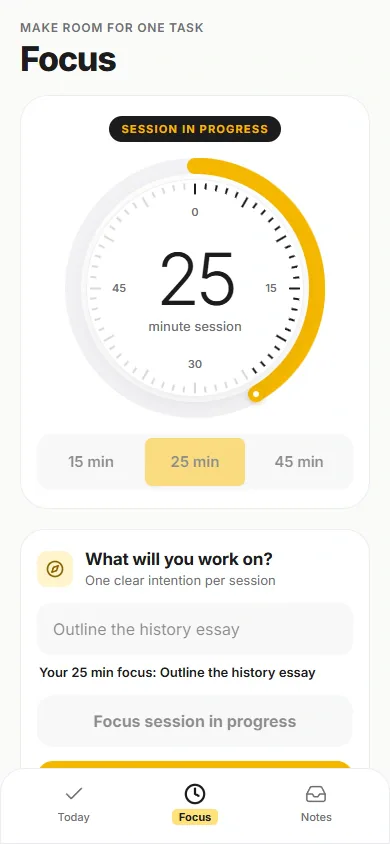
Orbit’s focus view offers 15, 25 and 45 minute sessions. It asks for an intention before starting and counts a session when it is marked complete. Planning to study for 25 minutes on Wednesday tells you nothing about whether Mina completed the outline on Tuesday.
Begin a focus session, leave it unfinished, move the planned work in your customised planner, and inspect the focus count. Decide what the product should say about interrupted work before changing any totals. If your prototype has only temporary state, close and reopen it too. Explain that limit to the tester, or add and verify persistence before inviting them to rely on it for a real deadline.
These screens follow a single session through the original template. On Focus, choose 25 minutes, enter “Outline the history essay” and begin. Orbit records your intention and lets you mark the session complete. Its instructions tell you to use your own timer. Keep this behaviour in mind if you later want the planner to measure time spent in the background.
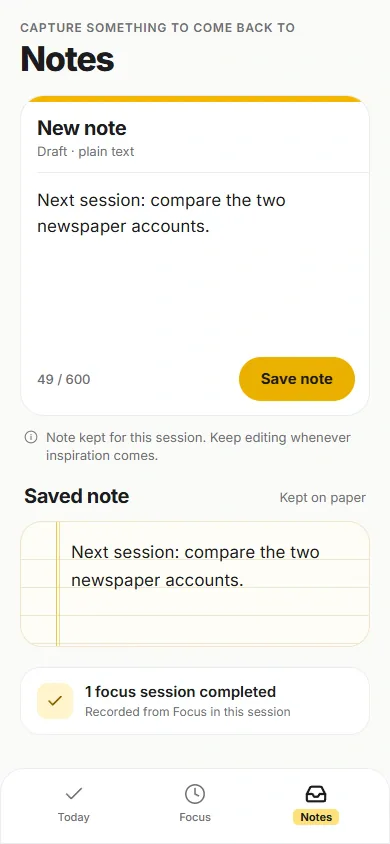
After marking the session complete, open Notes and save one sentence describing what comes next. In this example the note says “Next session: compare the two newspaper accounts,” and the counter shows one completed session. Mina could move the next study day without losing that piece of context in your customised planner. Give a tester the saved sentence and ask which task they would open on Wednesday. If they select a new generic “History” task, put the note nearer the particular session it belongs to. Test saving and reopening that link separately if you want it to survive a new app session.
Test a deliberately awkward week
- Mark “Gather three sources” complete. Move “Draft the opening” from Tuesday to Wednesday. Verify that Wednesday shows it once.
- Reopen the assignment. Read its deadline aloud. It should still be Friday. Check that the completed session is still attached.
- Move the unfinished session back to Tuesday, then start another move and cancel. Check both day lists for duplicates.
- Try a date after Friday. Choose a deliberate policy, such as allowing the change with a visible deadline warning, and test the wording with someone who has missed an assignment before.
If a session appears twice after a move, inspect which item the action updated. Two rows called “Revision” can belong to different assignments. A stable session identifier is a safer target than a display title or a row’s position. If tapping opens the wrong page instead, check the destination against the Appsanic navigation guide.
Hand the finished screen to a student and say only “Your Tuesday shift has changed.” Watch where they look for the deadline after moving the session. That final glance tells you whether the planner helped them understand the revised week.
Move work into a day that is nearly full
Give Mina a 30-minute study window on Wednesday. Her existing vocabulary review takes 20 minutes, and the essay outline she wants to move takes 25. A planner can place both cards on Wednesday while quietly promising 45 minutes of work in half an hour. Show the arithmetic as she chooses the day. “10 minutes free on Wednesday. This session needs 25.” The student now has a reason to reconsider before saving.
If your planner offers splitting, let her move 10 minutes of outlining to Wednesday and the remaining 15 to Thursday. Keep both parts attached to the original essay. Wednesday should now contain 30 planned minutes, Thursday should gain 15, and the essay should still be due Friday. Completing Wednesday’s 10 minutes should leave Thursday’s work open. If splitting is outside the scope of your first release, keep the original session whole and offer a different day.
Ask a student to make this choice without telling them which day has space. Watch whether they can find the 15 minutes still to do. The one-person usability test gives you a way to record where they look before you change the layout.
Published