
Build a recipe app that keeps servings and the shopping list in sync
Use Appsanic’s Gather template to trace a recipe from the kitchen screen to a checked shopping list. Test ingredient scaling, editing and the trip back to cooking.
Treat a serving change as one decision that feeds both the ingredient list and the shopping list. Put a known recipe through the full flow and compare the quantities at each step.
A useful recipe app survives the trip to the shops. Imagine choosing dinner for two, changing your mind to cook for four and discovering in the supermarket that the shopping list still says 120 grams of quinoa. All the screens looked finished. The failure was in the handoff from one screen to the next. Appsanic’s Gather template gives you an existing kitchen, recipe and shopping flow to inspect before making it your own.
Cook the template once before editing it
Open Gather and inspect its three screens. Kitchen introduces the featured recipe, Recipe holds servings and ingredients, and Shopping is where you check what to buy. In a project created from the template, open Preview and choose Start cooking. Read the featured Golden harvest bowl as an actual shopping task. Note the starting servings and the quantities you see for quinoa, sweet potato and chickpeas.
Change the servings, use Add ingredients to my list, then go to Shopping. Compare a measurable ingredient on both screens. Grams are particularly useful because you can tell whether doubling a recipe has doubled the amount. Return to Recipe and inspect the selected servings. Write down the sequence of taps that led to the result. It becomes your quick regression test when you later replace the recipe or restyle the screens.
Shop the three-serving version
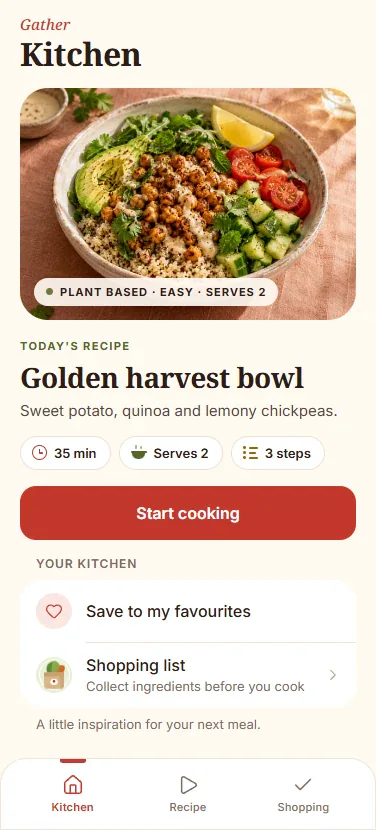
In the Kitchen screen below, Serves 2 describes the featured dinner before you customise it. Open Start cooking, choose 3 in Recipe, then scroll to Ingredients. In the three-serving version, the ingredient list reads 180 g dry quinoa, 450 g sweet potato and 180 g chickpeas. Use these three numbers to check your copy even if you have already replaced the food photography.
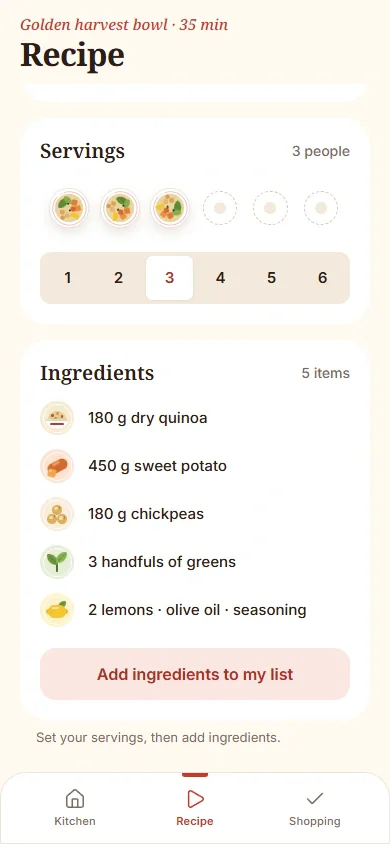
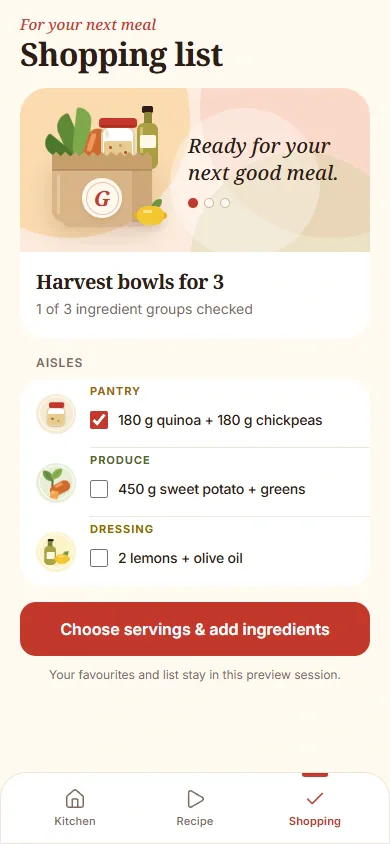
Tap Add ingredients to my list, visit Shopping and tick Pantry. The shopping list groups quinoa and chickpeas together because they share an aisle. Its progress message counts one of three ingredient groups. Someone shopping for five ingredients may expect five separate tick boxes. Watch a tester collect quinoa while leaving the chickpeas on the shelf. If they tick Pantry immediately, decide whether individual ingredient checks would better match the way your audience shops.
Make one source responsible for each quantity
For a recipe with 120 grams of dry quinoa at two servings, four servings require 240 grams. Compute the new quantity from the original recipe and the chosen serving count. Multiplying the last displayed amount on every tap introduces drift after a sequence such as two to four to three to two. For a check you can do by hand, three servings of that quinoa should require 180 grams. Back at two, it should return to 120.
Give each ingredient a name, quantity and unit when it has a measurable quantity. “Olive oil for the pan” is an instruction rather than a numeric ingredient. “Two handfuls of greens” is deliberately approximate. Decide how each should read at larger servings. Keep rounding a display decision, so the number used in a later calculation still represents the original recipe. Try half quantities and long ingredient names before declaring the ingredients panel complete.
Decide what the shopping action promises
Suppose the shopper checked off quinoa and then returned to change from four servings to six. There are two reasonable experiences. The existing shopping list could keep its four-serving quantities until the shopper chooses to add the updated ingredients. Or the app could update the quantities automatically and explain which checked items need attention. Choose one and write the on-screen message to fit it. Otherwise a green check can suggest that a shopper already has enough of an ingredient whose quantity just increased.
For a first customisation, ask Sanic AI for one behaviour at a time. A brief might be “Keep Gather’s existing navigation. On Recipe, explain which serving count the last shopping list used. After I change servings, show that I can update the list. Preserve ingredients I have already checked when their required quantity stays the same.” Test that last clause with real quantities. The Sanic AI guide covers reviewing changes to an existing project.
This is what the supplied template does when you return to Recipe, change to four servings, add the ingredients again and reopen Shopping. The heading now says Harvest bowls for 4. Pantry reads 240 g quinoa plus 240 g chickpeas, and the counter has returned to zero. That reset gives the shopper a chance to collect the larger quantities.
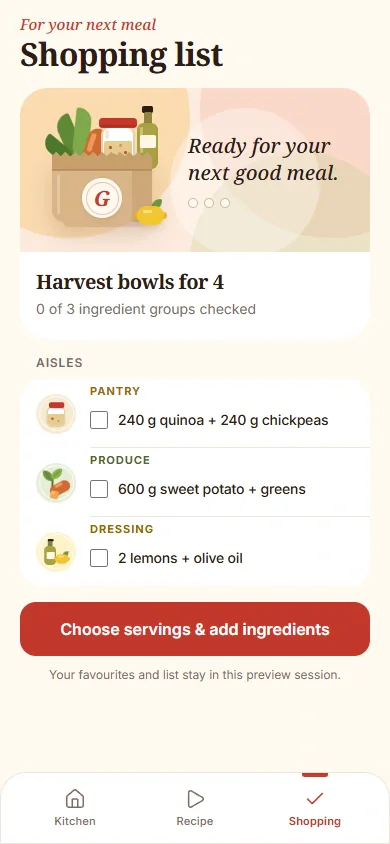
Try the change while pretending you already have the 180 g of quinoa for dinner. The screen now gives the full four-serving total. If you want a feature that says “60 g more quinoa”, it needs a record of how much has actually been collected. A single tick for Pantry cannot tell whether the shopper picked up exactly 180 g or already owns a full bag. Ask how shoppers want to use that tick before changing the calculation.
Put the food photography to work
Use a photograph of the finished dish that still explains dinner when cropped to phone width. The ingredient list should remain usable without recognising ingredients from pictures. Keep names, units and quantities as text. If you change the featured dish to lemon pasta, revise the card, detailed recipe and shopping groups together. A pasta hero with the old bowl’s ingredient data is a content mismatch the layout editor cannot diagnose for you.
Finally, hand the phone to someone and ask them to shop for three servings, tick off one ingredient and return to the cooking instructions. Observe where they pause and whether they can explain what the tick means. Ask where they expect their list to be after closing the app. If your design promises persistence, close and reopen the actual build and verify that promise separately. Completing the task on a phone tells you more about this recipe app than another pass over its card shadows. The device preview guide walks through testing the current version.
Turn ingredient totals into a sensible number of packs
A shopper buys coconut milk by the tin while a recipe measures it in millilitres. Add a test recipe that uses 180 ml for two servings and assume the shop sells 400 ml tins. At four servings, show “360 ml needed · buy 1 tin”. At six, show “540 ml needed · buy 2 tins”. Keep the recipe instructions at 540 ml. Pouring in the full 800 ml would change dinner.
If you extend Gather to combine meals, add a second recipe that needs 160 ml of the same coconut milk. Choose four servings of the first dish and one batch of the second. The shared list should now show 520 ml and two tins. Remove the second dish and expect 360 ml and one tin again. Add amounts in the same unit before rounding up to whole packs. Treat coconut cream as a different ingredient even when the tin sizes match.
Leave the pack suggestion off for ingredients whose pack size you have not supplied. Give a tester the four-serving list near a shelf of tins and ask how many they would pick up. The first usability test guide shows how to observe that decision without supplying the answer.
Published