
How to build a mobile app using AI
Build a study planner from a precise prompt, change it in the visual editor, and prove that the first journey works on a phone.
Start with a task someone can finish. Give AI the first pass, make one visual edit yourself, and run the same task a second time.
Imagine a student opening your app outside a classroom with five minutes to spare. They want to see which assignment is due next, read its instructions, and return to the list. That is enough work for a first mobile app. It also gives you a way to tell whether the AI delivered anything useful. You can put the phone in someone's hand and watch them do it.
Write down what finishing looks like
For this walkthrough, put three assignments on paper. Give one a short title, one a long title that will wrap, and one the same due date as another. For example, use “Field notes”, “Illustrated history of the local water supply”, and “Design critique”. Give each its own instructions. Decide that finishing means opening Design critique and seeing its instructions, then returning to the same list. There is no sign-in, calendar integration or reminder in this first version. Each of those would introduce a second problem before you have answered the first.
Give Sanic AI a brief it can build
Open a project in Appsanic. A blank project works, or start from the Orbit planner if you want an existing layout. If you use a template, tell the assistant which existing page to edit. In Sanic AI, try this as a first request:
“Make the Today page a study planner with three sample assignments: Field notes, Illustrated history of the local water supply, and Design critique. Show the due date beside each title. Tapping an assignment should show that assignment’s instructions, with a way back to Today. Use the project theme. Keep the assignments local samples for this first test.”
The word “sample” is doing real work. You can judge navigation without needing accounts or a database. The three different names expose a common mistake: every row opens the same detail. Asking for a way back makes the return journey part of the brief. You can use the Sanic AI guide to check which assistance options your current account offers.
Read your last sentence once before sending. If you specify a return to Today, you can test a round trip as soon as the second page exists. If you specify local samples, you can start with an empty account and know exactly which records should be there. Keep a copy of that first brief beside the project. When a later edit breaks the middle assignment, the original names give you a short, repeatable way to describe the failure.
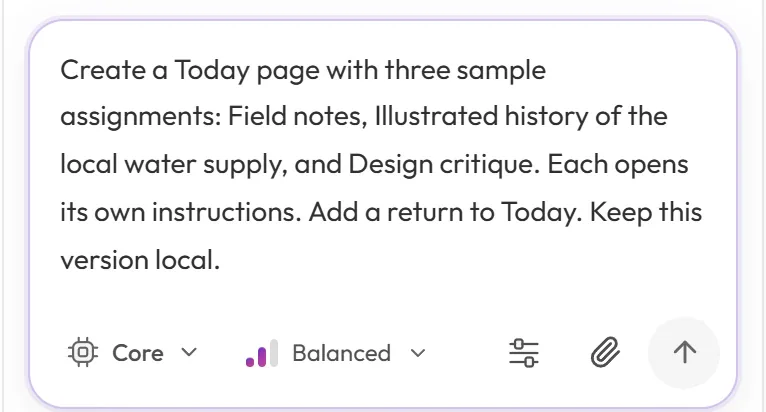
The screenshot shows the brief entered in the Sanic AI composer. You can substitute three examples from your own field. For a repair log, use two jobs at the same address with different instructions. For a walking guide, use two routes with the same length but different meeting points. Give the destinations different information that the shopper, technician or walker would actually need. That turns an otherwise decorative second page into something you can check.
Inspect what changed, then make one edit yourself
Open Pages and identify the starting screen. In Layers, select a title that looks cramped. Find its text or spacing in the Inspector. Double-click a supported text label to change it directly. Try replacing “Design critique” with “Design critique with the afternoon group”. Watch what happens to its due date and to the row beneath it. A screen that works only with the assistant’s original short labels needs another pass.
Keep the edit narrow. If all three rows need the same structural change, ask the assistant for that shared rule. If one heading needs six more pixels of breathing room, adjust the property yourself. Both edits happen in the same project. The visual editor guide shows where to find the controls.
Prove that the taps reach the right content
Switch to Preview. From Today, open each assignment in turn and read the first sentence of its instructions. Return after each one. Start with the middle row on the second run. This small variation catches detail pages that always initialise from the first item. If a button highlights but goes nowhere, select it in Design and inspect its tap action and destination. If it opens a page with the wrong title, examine how the selected assignment is passed or looked up. A bigger button will not fix the wrong record.
Now try your longest title at a narrow width. Check whether the full title remains readable and whether the due date still belongs visually to the same assignment. Ask one person to find the next submission without explaining the screen. Write down the first label they hesitate over.
Follow one record through these two screens from a worked Appsanic prototype. On Today, Design critique shares its Thursday due date with the history assignment. Opening it reveals a studio-specific instruction about bringing two sketches. In your first build, look for an equally distinctive sentence, especially when two rows display the same date. These screens demonstrate the intended interaction for the earlier brief.
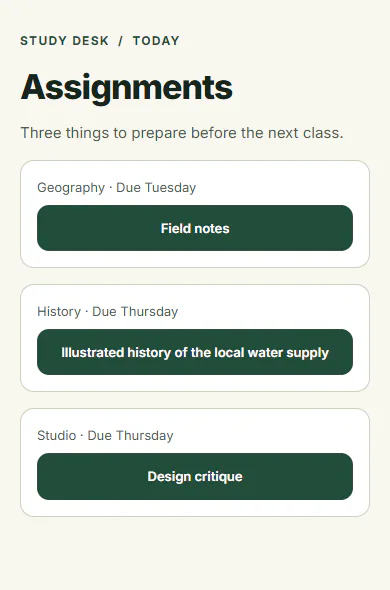
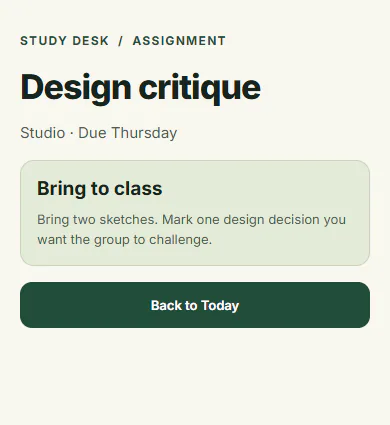
Try changing just the studio instruction to “Bring three sketches” and returning through Today. Reopen the assignment and count the sketches in the sentence. Then check that the history instructions still mention the reservoir. Those two observations distinguish a successful content edit from an edit that changed shared text on every detail page. If a friend can do the same check without knowing how you built the project, you have a small demonstration worth keeping for your next release.
Put the same journey on a phone
Save the project. Where your plan offers Test on phone, follow the device preview instructions and open the saved build. Hold the phone in one hand and repeat the exact task. Can your thumb reach Back? Can you read the due dates outdoors? Does the long title wrap differently? Record the device and the first point where behaviour differs. A report such as “Design critique opens Field notes on the second visit” gives you a concrete next edit.
Keep a three-line handover: what works, which data is still fictional, and what must happen next. For this planner the next decision is whether assignments should survive a restart or sync across devices. Answering that after testing the first journey gives you a reason to add storage. It also leaves you with a working app you can demonstrate today.
Choose the first feature your sample data cannot prove
Suppose a student asks for a “Done” button after trying the planner. Ask them to finish a sentence before you build it. “When I tap Done, I want the next assignment to move to the top” is a change to the list. “When I open my phone tomorrow, I want it to remember” adds storage. “When I open my tablet, I want the same list” adds an account and shared data. The button might look identical in all three versions.
For the smallest version, mark Design critique complete, open Field notes, then return to Today. Field notes should still be open for work and Design critique should be the only completed item. If both change, ask Sanic AI to track completion against each assignment’s own identity. Then give two assignments the same title and repeat. That catches a fix that accidentally uses the title to identify the assignment.
Try the restart separately. Write down what survived before you promise anyone that progress is saved. Once the student needs to move work between days, the study planner rescheduling example takes that decision further.
Published